 Keet Support
Video issues
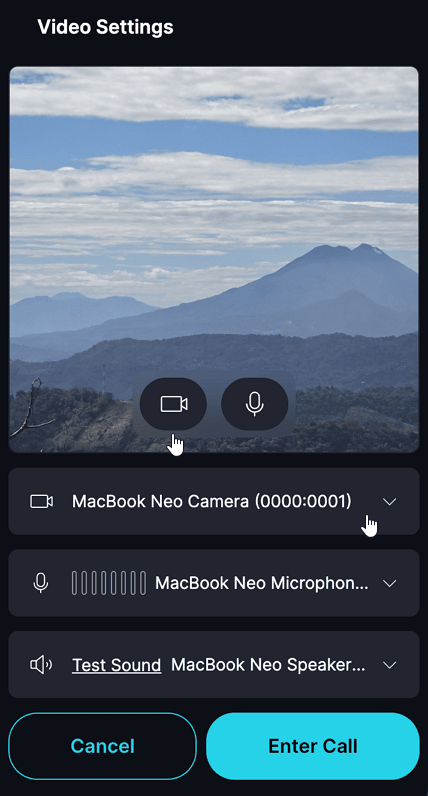
* Check that the camera is selected and enabled during a call:
I can't use the camera on Keet
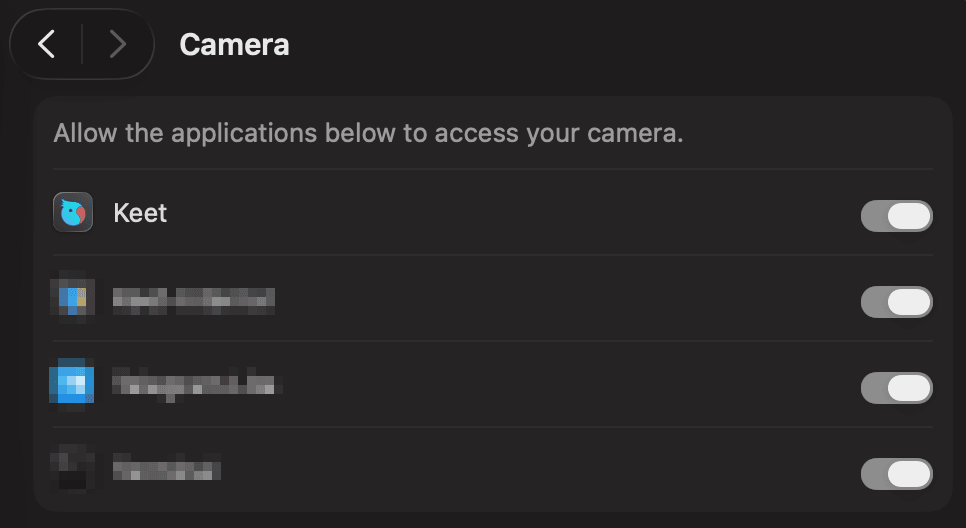
- Verify that you have granted Keet the necessary camera permissions.
- Desktop: 'Settings' / 'Privacy & Security' / 'Camera' / 'Keet'
- Mobile: 'Settings' / 'Apps' / 'Keet' / 'Permissions'
- Test the camera in other apps to ensure it's functioning properly.
Video quality is low
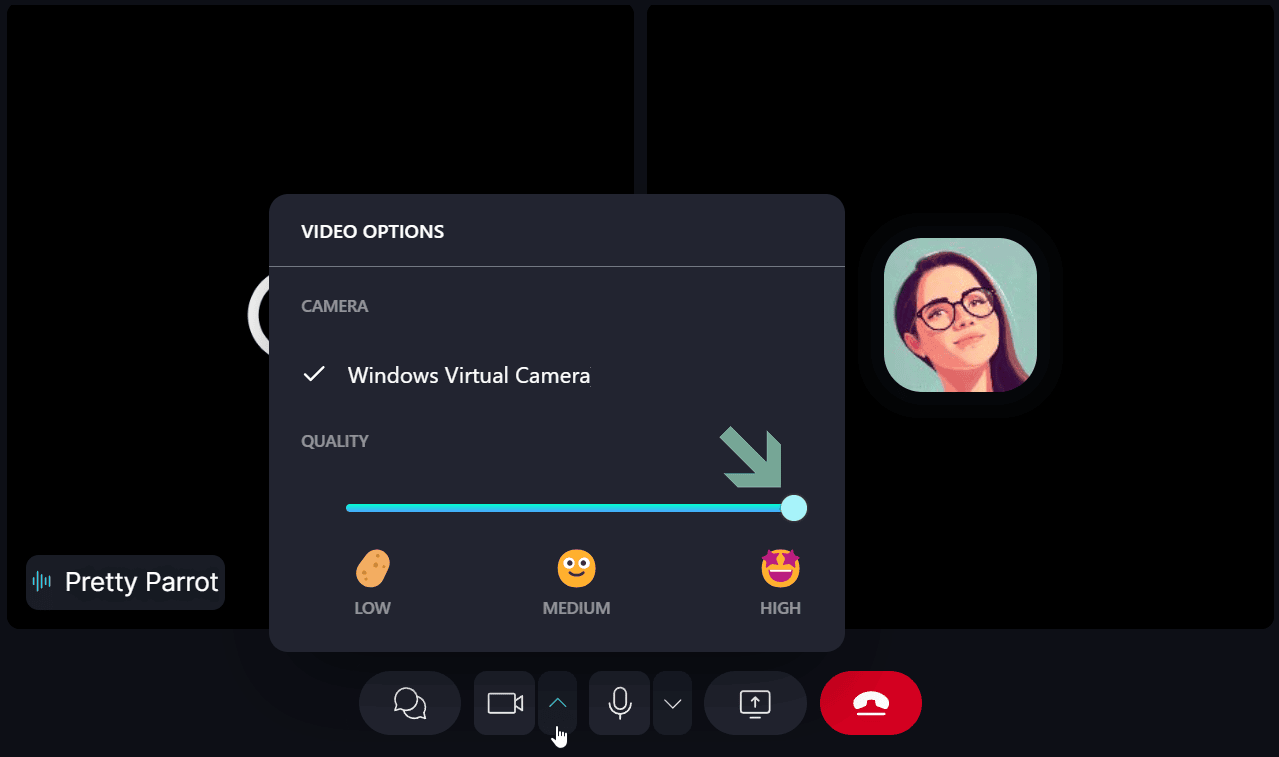
- Adjust video quality settings during the call on Desktop. Click on the dropdown button next to the camera icon to change video quality.
- Ensure that you and your contact have a stable internet connection.
I want to use my rear camera during a call
To switch cameras when calling from your mobile device, tap the 'Flip camera' [📸] icon
![To switch cameras when calling from your mobile device, tap the 'Flip camera' [📸] icon.](/images/technical-support-and-troubleshooting/video-issues/switch-cameras-calling-mobile-device-4.jpg "Video issues")
A video someone shared won't play
Some videos are recorded with a codec (commonly H.265 / HEVC) that isn't supported on every device or operating system, so the video may play fine for the sender but not for you.
Keet can't convert a video on the receiving end. Ask the sender to re-share it using 'Convert video' - see Convert Incompatible Videos.
If you are experiencing further issues, please submit a bug report to the 'Bug Bandits' group and our team will look into it.